
In the ever-evolving landscape of global technology, Apple has recently introduced a transformative suite of verification tools. These fresh updates focus heavily on child safety and rigorous account security. Because the digital world changes so quickly, the tech giant constantly refines how it validates users. Consequently, these new measures impact millions of developers and billions of active users worldwide.

A Global Shift in Age Verification
Starting in late February 2026, Apple significantly expanded its age assurance systems for the App Store. This move specifically targets countries like Australia, Brazil, and Singapore with strict new rules. Under these guidelines, the App Store now automatically blocks downloads of 18+ rated apps for unverified users. Furthermore, Apple has released a sophisticated “Declared Age Range API” to help developers navigate these legal waters.
The Mechanics of the Declared Age Range API
While Apple handles much of the heavy lifting, developers still carry a heavy burden of compliance. The new API provides a helpful signal regarding a user’s specific age category. Specifically, it can distinguish between users under 13, those between 13 and 16, and adults. Since this tool operates with high privacy standards, it does not share actual birth dates. Instead, it offers a secure token that confirms the user’s status without compromising personal data.
Enhanced Security for Personal Accounts
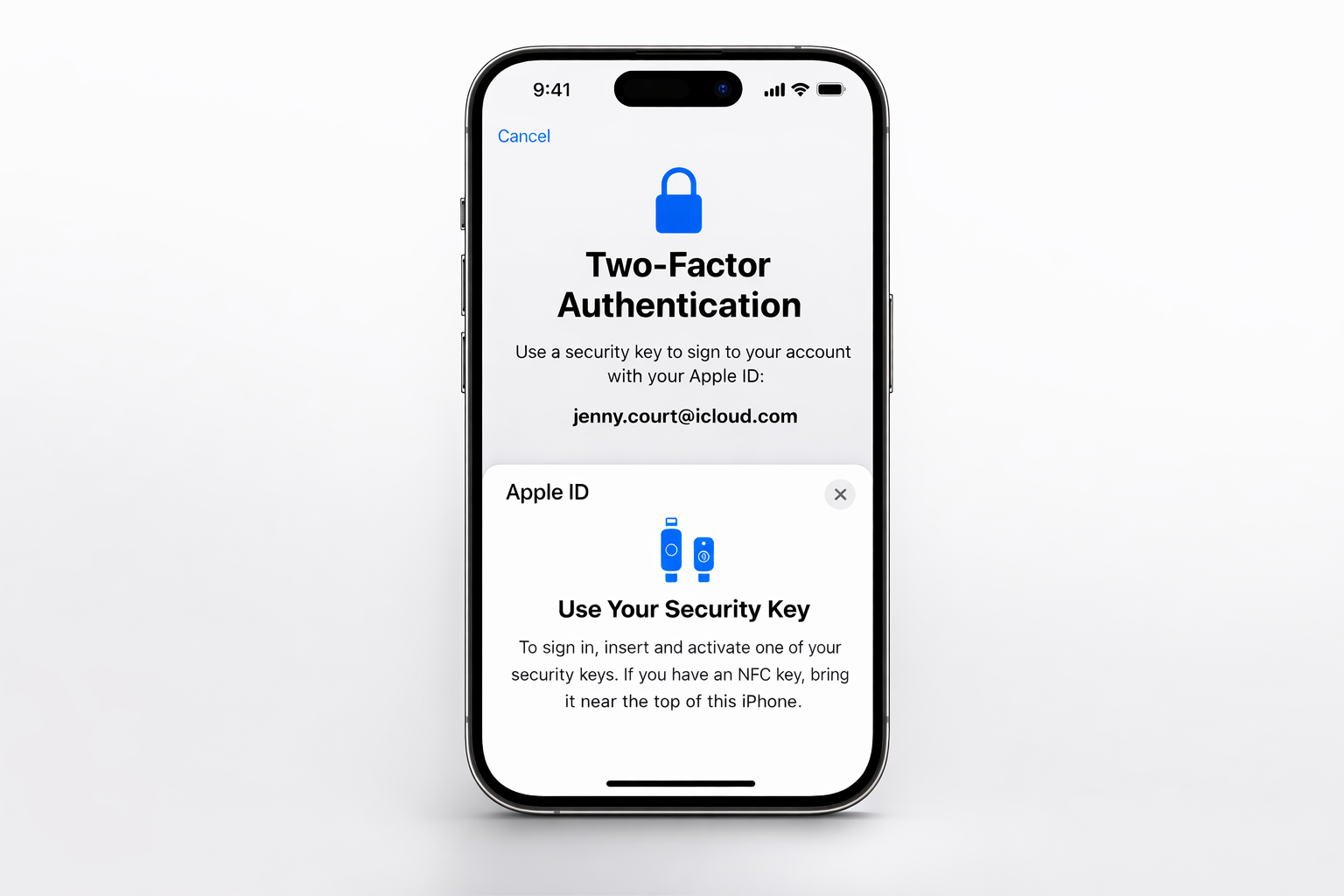
Beyond age checks, Apple is doubling down on account integrity through advanced hardware and software protocols. Because phishing attacks have become more sophisticated, the company now strongly promotes physical security keys. These small devices serve as a robust second factor for your Apple Account. If you use a FIDO-certified key, you effectively eliminate the risk of intercepted SMS codes.
Stolen Device Protection and Security Delays
One of the most praised features in the latest iOS 26.4 beta is the “Stolen Device Protection” update. Previously, this feature required a manual setup, but it may soon become the default for all. If your phone is snatched in an unfamiliar location, the system now mandates biometric authentication. Furthermore, a one-hour security delay applies to critical changes like resetting an Apple ID password. This intentional friction ensures that a thief with your passcode cannot easily lock you out.
Evolution of Diagnostic and Repair Tools
Apple has also made strides in how it verifies the hardware health of its devices. For instance, the “Apple Service Utility” has been updated to support newer Mac and iPhone models. This tool is essential for finishing repairs, as it performs “System Configuration” to marry new parts to the logic board. Consequently, self-service repair is becoming more transparent and accessible for experienced users.
The Role of Post-Repair Verification
When a screen or camera is replaced, the device must verify that the new part is genuine. Apple’s software tools now guide users through this calibration process more smoothly than ever. Since the 2026 updates, the diagnostics can even target specific components like the trackpad or keyboard. This granular approach helps identify faults without running a full, time-consuming system sweep.
Tech Tip: Always check your warranty status through the official Apple Support site before attempting a DIY repair.
The Future of Continuous Identity
Interestingly, industry experts suggest that Apple is moving toward “continuous identity verification.” This means the device doesn’t just check who you are once; it monitors for authenticity constantly. Because static credentials like passwords are increasingly vulnerable, this shift is vital for long-term security. By using on-device AI, Apple can detect if a different person is suddenly using an unlocked device.
Summary of Latest Apple Verification Tools (2026)
| Feature | Primary Function | Target User |
| Declared Age Range API | Shares age category with apps | App Developers |
| Stolen Device Protection | Biometric lock in new areas | All iPhone Users |
| Physical Security Keys | Hardware-based 2FA | High-security Users |
| Apple Service Utility | Hardware part verification | Repair Technicians |
A Step-by-step Guide to Implement Apple Verification Tools
Implementing physical security keys for your Apple Account is a savvy move for any digital fortress. Because Apple prioritizes redundancy, the system requires you to register at least two FIDO-certified keys. This ensures that you aren’t permanently locked out if one key goes missing. Consequently, the setup process is methodical but straightforward.
Preparation Checklist
Before you begin, ensure you have two compatible security keys, such as a YubiKey 5C NFC or a FEITIAN ePass. Because compatibility is key, your iPhone must be running at least iOS 16.3, though iOS 26.4 is highly recommended for the latest patches. Additionally, you must have two-factor authentication already enabled on your Apple Account. If you are ready, follow these specific steps to bolster your security.
Step-by-Step Configuration on iPhone
- Navigate to Settings: First, open the Settings app and tap your name at the very top.
- Access Security: Next, select Sign-In & Security to view your credential options.
- Enable Security Keys: Within this menu, tap Two-Factor Authentication and then select Security Keys.
- Initiate Setup: Tap the Add Security Keys button and review the introductory prompt.
- Review Active Devices: Apple will show a list of devices currently signed into your account. Because some older devices might not support hardware keys, you may need to sign out of them to proceed.
- Register Key One: When prompted, insert your first key or hold an NFC key near the top of your iPhone. Specifically, if your key has a gold contact, you might need to touch it to finalize the pairing.
- Assign a Name: Give this key a clear nickname, such as “Work Keychain” or “Home Office.”
- Register Key Two: Repeat the pairing process with your second backup key immediately.
- Finalize: Once both keys are verified, tap Done to activate the new protocol.
How to Sign In Post-Setup of Apple Verification Tools
Since your account now relies on physical hardware, the login experience will change slightly. Instead of waiting for a six-digit text code, you will simply insert or tap your key when prompted. Because this method is phishing-resistant, a hacker cannot trick you into “giving up” your access code. If you are using a Mac, you can follow a nearly identical path under System Settings > [Your Name] > Sign-In & Security.
Key Management Table
| Action | Required Tool | Location in Settings |
| Add New Key | New FIDO Key | Security Keys > Add |
| Remove a Key | Existing Auth | Security Keys > [Key Name] |
| Reset Password | Paired Key | Sign-In & Security > Change Password |
Important Maintenance Tips
Because these keys are physical objects, they are subject to being lost or damaged. Therefore, you should store your backup key in a completely different location than your primary one. If you lose one, remove it from your account immediately via your device settings. This prevents a finders-keepers situation from compromising your digital life.
Why These Apple Verification Tools Matter to You
As we move further into 2026, the concept of a “digital identity” is becoming more complex. Because Apple controls such a massive ecosystem, its verification tools set the standard for the industry. While some might find the extra steps annoying, they provide a necessary shield against modern threats. Ultimately, these tools ensure that your data remains yours and that children are protected from age-inappropriate content.
Please support our effort by shopping through our affiliate links.




Leave a Reply