
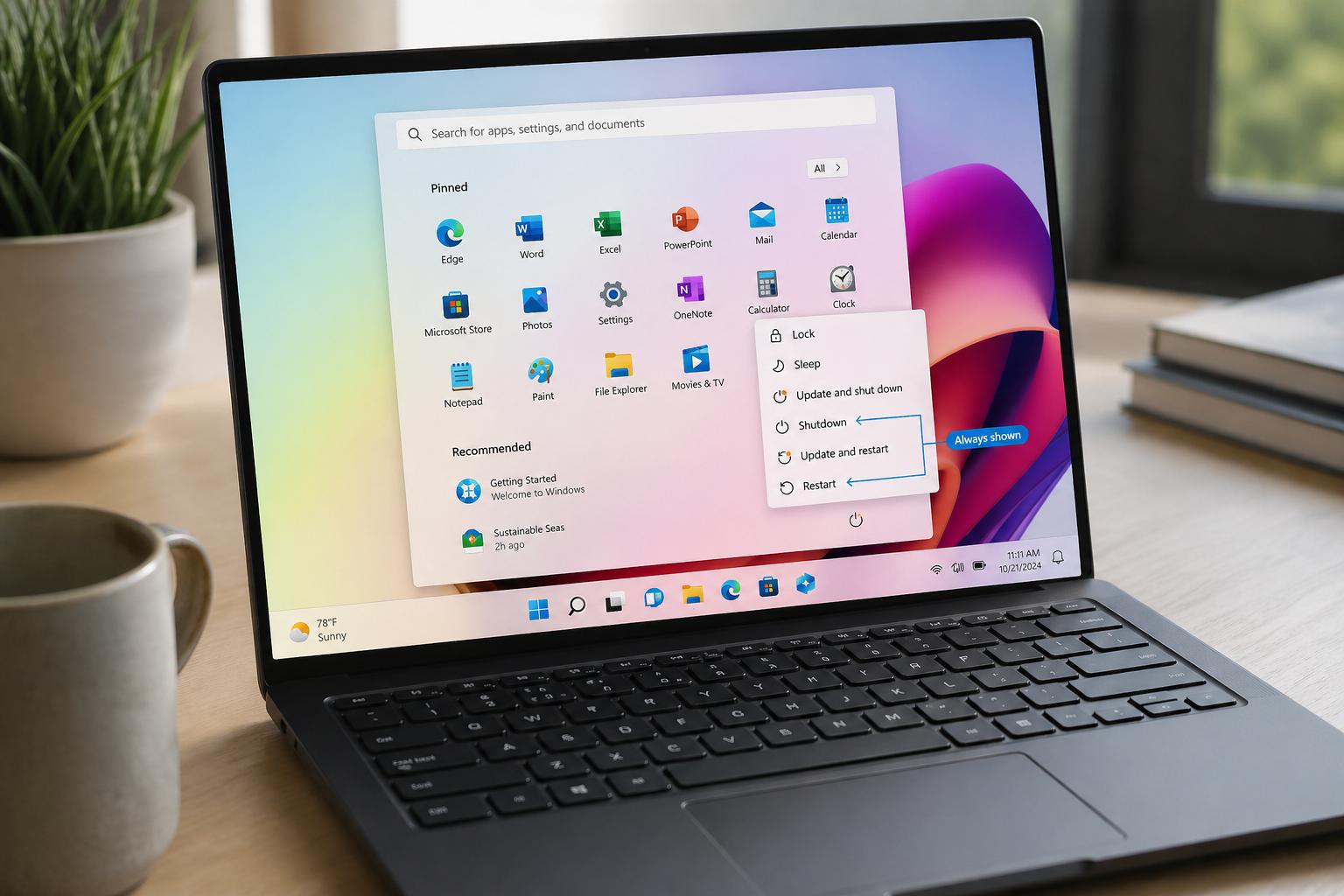
Microsoft recently transformed how millions of users turn off their computers through the update of Windows Power Button. These changes reflect a deeper strategy regarding system efficiency and environmental responsibility. Many people assume a shutdown completely stops all background processes. However, Windows 11 manages power states quite differently than older operating systems. This shift often surprises long-time users who expect traditional behavior from their hardware.

The company aims to balance rapid boot times with modern energy standards. Consequently, the “Shut Down” command no longer functions as a total system reset by default. Engineers implemented a feature called Fast Startup to bridge the gap between hibernation and power. Meanwhile, the “Restart” button remains the only way to clear the system kernel entirely. Understanding these nuances is essential for maintaining a healthy and responsive digital environment.
The Mechanics of Fast Startup
Fast Startup acts as a hybrid state for your operating system. It saves the state of the Windows kernel to the hard drive during a shutdown. Therefore, the computer loads this saved image much faster during the next power-on cycle. This process avoids the lengthy initialization of drivers and system services from scratch. Nevertheless, it means that your “Up Time” in Task Manager might show several days or weeks.
Many technical issues persist because the kernel never truly refreshes during a standard shutdown. Users often complain about sluggish performance despite daily power cycles. Furthermore, drivers can get stuck in an error state within the saved hibernation file. In such cases, a simple shutdown fails to resolve the underlying software glitches. A full restart becomes the necessary tool for clearing out these persistent digital cobwebs.
Why Restarting Still Matters
The “Restart” command serves a specific and vital purpose in the Windows ecosystem. It bypasses the Fast Startup file to perform a clean boot of every component. Therefore, it remains the gold standard for troubleshooting stubborn software bugs or driver errors. Most updates require this specific action to replace files that are currently in use. Consequently, clicking restart ensures that no legacy data remains in the active system memory.
Modern hardware benefits significantly from these periodic and complete system refreshes. RAM fragmentation and memory leaks often accumulate over long periods of continuous operation. Moreover, the restart process triggers a full hardware POST (Power-On Self-Test) routine. This check verifies that all physical components are communicating correctly with the motherboard firmware. Consequently, users should prioritize restarting their machines at least once a week for optimal stability.
The Sustainability Shift
Microsoft recently introduced “Carbon Aware” power settings to help reduce global energy consumption. This initiative aligns the operating system with local electrical grid data. Specifically, Windows Update now attempts to schedule installations when clean energy is most available. Meanwhile, the default power plan for many devices has shifted to “High Efficiency” modes. These changes help lower the overall carbon footprint of the massive Windows user base.
The operating system now displays small leaf icons to indicate eco-friendly settings. These visual cues encourage users to adopt more sustainable habits with their technology. However, these efficiency settings can occasionally interfere with background tasks during idle periods. Some power users might find the aggressive sleep timers a bit intrusive during work hours. Nevertheless, the environmental benefits of these minor adjustments are measurable and significant across millions of devices.
Redesigning the Start Menu Power Options
The visual layout of the power menu has undergone several controversial iterations lately. Microsoft moved the “Sign Out” and “Lock” options to provide more space for account settings. Consequently, some users found it difficult to locate basic power commands after recent updates. The company listened to feedback and attempted to streamline the interface for better accessibility. Meanwhile, the inclusion of “Update and Shut Down” remains a staple for security compliance.
Recent builds of Windows 11 have experimented with adding more proactive notifications to the power button. For example, a small dot appears when an update is pending a system reboot. This subtle change prevents users from being surprised by forced restarts during critical work meetings. Furthermore, the “Recommended” section in the Start menu now highlights recently used files and apps. This design choice aims to make the transition between power states feel more seamless.
Comparing Windows Power States
| Feature | Shut Down (Fast Startup On) | Restart | Hibernation | Sleep |
|---|---|---|---|---|
| Kernel State | Saved to disk | Completely refreshed | Saved to disk | Stored in RAM |
| Power Usage | Near zero | Temporary spike | Zero | Minimal |
| Boot Speed | Very fast | Slower (Full boot) | Moderate | Instant |
| Clears RAM | Partially | Yes | No | No |
| Clears Errors | Occasionally | Always | No | No |
The Impact on IT Administration
Enterprise environments face unique challenges with the new Windows power behaviors. IT managers often struggle with machines that haven’t seen a true restart in months. Consequently, security patches can remain in a pending state, leaving the network vulnerable to exploits. Many organizations now deploy group policies to force restarts after a specific period of activity. Furthermore, remote management tools must account for the Fast Startup state when diagnosing client issues.
Automated deployment systems often fail if a machine is stuck in a hybrid power state. Therefore, administrators frequently disable Fast Startup across their entire device fleet for better predictability. This ensures that every shutdown results in a clean slate for the next user session. Meanwhile, Microsoft provides detailed telemetry to help admins monitor the “Reboot Health” of their computers. These insights allow for more proactive maintenance and a reduction in helpdesk tickets.
Hardware Synergy and Modern Standby
Modern Standby is another area where Microsoft has pushed for significant technological change. This feature allows a PC to stay connected to the internet while in a low-power state. It mimics the behavior of a smartphone by downloading emails and updates in the background. However, this has led to reports of laptops overheating while stored in backpacks. Consequently, Microsoft has refined the algorithms that govern when a device can wake from standby.
The interaction between hardware firmware and the OS is more complex than ever before. Drivers must support specific low-power states to avoid draining the battery during sleep. Moreover, the BIOS or UEFI must communicate energy requirements clearly to the Windows power manager. These deep integrations ensure that your device stays ready for immediate use without wasting electricity. Nevertheless, hardware compatibility remains a hurdle for some older laptop models during this transition.
The Role of AI in Power Management
Microsoft is currently integrating artificial intelligence to optimize system performance and power draw. These AI models learn your usage patterns to predict when you will leave your desk. Therefore, the computer can enter a deeper sleep state more quickly during periods of inactivity. This proactive approach saves battery life without compromising the user experience during active hours. Meanwhile, the AI can prioritize power for demanding applications like video editors or games.
Predictive power management represents the next frontier for the Windows operating system. The software can now analyze which background processes are unnecessary for a specific user profile. Furthermore, it can throttle these processes to extend the longevity of the hardware components. Consequently, users see fewer thermal throttling events during intense workloads. This intelligent layer adds a level of sophistication that manual power plans simply cannot match.
Troubleshooting Common Power Issues
Sometimes, the transition between power states does not go as planned. Drivers often fail to enter a low-power mode, causing the system to hang during shutdown. Moreover, certain USB peripherals can keep a computer awake indefinitely if not configured correctly. Users can use the “Powercfg” command in the terminal to identify these problematic components. This tool provides a detailed report on what is preventing the system from entering sleep.
Many people find that their computer turns back on immediately after they shut it down. This behavior is often linked to “Wake on LAN” settings in the network adapter properties. Additionally, scheduled maintenance tasks can trigger a system boot in the middle of the night. Adjusting these settings in the Control Panel can restore control over the device power cycle. Furthermore, updating the chipset drivers often resolves persistent issues with sleep and hibernation.
Gaming and High-Performance Considerations
Gamers often have a complicated relationship with the Windows power management features. Fast Startup can sometimes cause issues with anti-cheat software or game launchers. Consequently, many gaming enthusiasts prefer to disable these features to ensure maximum system compatibility. A true restart is often required to clear the GPU cache after a long gaming session. This practice prevents graphical glitches and maintains high frame rates during competitive play.
Microsoft has introduced “Game Mode” to help prioritize resources for demanding software. This mode suppresses background updates and power-saving features while a game is running in the foreground. Furthermore, it ensures that the CPU and GPU have access to maximum power when needed. Meanwhile, the system still monitors thermal levels to prevent any permanent hardware damage. These optimizations make Windows a more robust platform for modern high-end gaming experiences.
The Future of Windows Power Control
Looking ahead, we can expect even more automation in how Windows handles power. The goal is to reach a state where users never have to think about their power button. Consequently, the operating system will handle all maintenance and efficiency tasks silently in the background. We might see a shift toward more “Always On, Always Connected” devices in the consumer market. Meanwhile, the distinction between a PC and a mobile device will continue to fade.
Cloud integration will also play a massive role in future shutdown and restart strategies. Microsoft is pushing the “Cloud PC” concept where your state is saved to the internet. Therefore, you could shut down one device and resume your session instantly on another machine. This seamless transition requires a fundamental rethink of how local power states are managed. Furthermore, it highlights Microsoft’s broader strategy of moving toward a service-based computing model.
User Feedback behind Windows Power Button Update
User feedback remains a driving force behind the changes in the Windows interface. The company frequently conducts A/B testing on different power menu layouts in the Insider Program. Consequently, the features we see today are the result of thousands of hours of user data. Many people requested a more prominent “Hibernate” option, which Microsoft eventually added back to the menu. This iterative process ensures that the OS remains functional for both casual and power users.
The move toward a more simplified interface is not without its critics, however. Long-time Windows users often feel that valuable technical controls are being hidden or removed. Nevertheless, Microsoft attempts to balance this by keeping the advanced settings accessible through the terminal or registry. This dual-track approach caters to everyone from grandmothers to software engineers. Meanwhile, the core mission remains the same: creating a reliable and efficient computing environment.
Conclusion on the Change of Windows Power Button
The way we interact with the Windows power button has changed forever. We no longer simply turn a machine on and off in the traditional sense. Instead, we manage a complex set of power states designed for speed and efficiency. Furthermore, our digital habits now have a direct impact on the environment through carbon-aware settings. Understanding the difference between shutdown and restart is more important than it has ever been.
As we move toward an AI-driven future, these processes will only become more automated. Consequently, we must stay informed about how our technology operates under the hood. Embracing these changes allows us to get the most out of our hardware and software. Meanwhile, Microsoft continues to refine the experience based on real-world usage and technological breakthroughs. The Windows power button may look the same, but the logic behind it is entirely new.






Leave a Reply